 CHFA Dean's Office
 Setting up Thunderbird for UNI e-mail
Chris Conklin
Version 1.0
2/22/2005 4:22:44 PM
Creating a Profile:
1. click start – all programs – Mozilla Thunderbird – Profile Manager
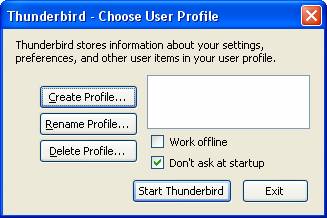
2. In the Create User Profile window click Create Profile
3. Click Next on the first create profile wizard page
4. Click the Choose Folder button
5. Expand out My Computer – “Documents on Mercury U:”
6. Click the Make New Folder button – and name the folder Thunderbird – then click OK. You should then see:
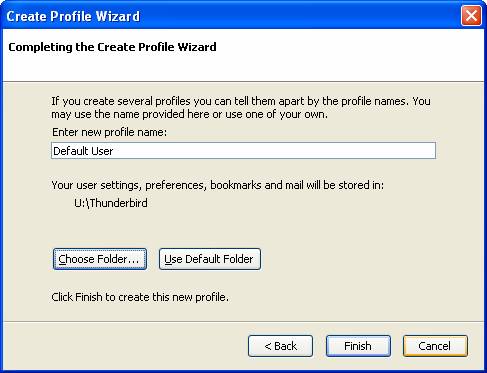
7. Click Finish.
8. Click Exit on the Thunderbird – Choose your profile window.
9. Start Thunderbird by clicking start – all programs – Mozilla Thunderbird – Mozilla Thunderbird.

10. Click Next on the New Account Setup page after selecting “email account”
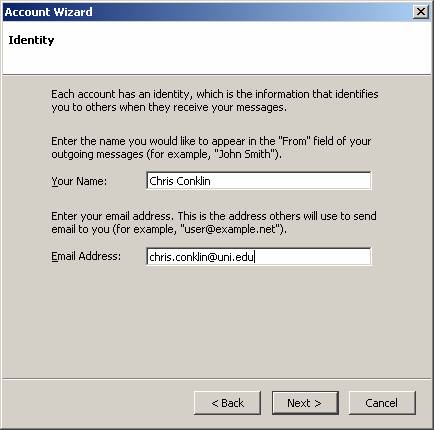
11. Fill in your name as you want it to appear to people you send email to (you can include nicknames, professional titles, or whatever you wish to appear here).
Enter you email address as it was supplied to you by ITS (for faculty/staff this will be the form of firstname.lastname@uni.edu). Click Next.
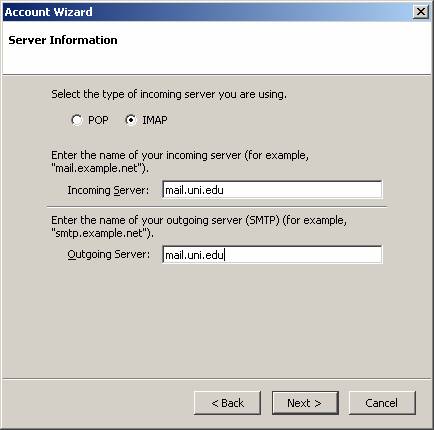
12. Click the Button to the left of IMAP. Enter mail.uni.edu for both incoming and outgoing mail servers. Once your screen looks like the above picture, click Next.
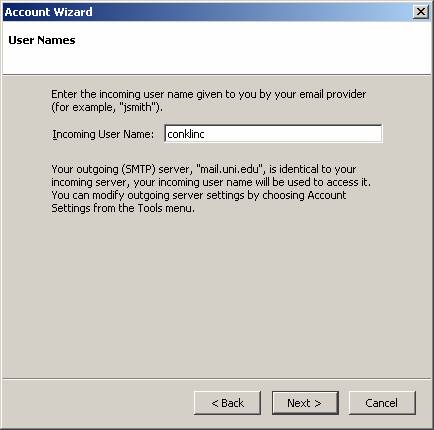
13. Change your Incoming user name to match the name you use to login to the mail system. Then click next.
14. On the Account Name page, simply click Next
15. You will have a “Congratulations!” page – simply click Next
16. If you want Windows to associate mail addresses with Thunderbird click Yes. If you wish to continue using a different mail program click No.
17. When prompted for your email login password click cancel.
18. Click the Tools menu at the top - and go down to Account Settings.
19. Go down to server settings under you mail address:

20. Mark the box for “Use secure connections (SSL).”
21. Click on “Copies & Folders” in the left column.

22. Change the ‘Place a copy in “sent” Folder on:’ to Local Folders. The default of youremail@uni.edu will use server space on the ITS VMS mail server, meaning your will run out of quota allocation quicker. HOWEVER If you work from home and need to look at copies of sent messages, you may wish to leave this as youremail@uni.edu
23. Click on Composition & Addressing.
24. Click the Edit Directories button after selecting to use a different LDAP server
25. Click the Add button.
26. Type in the “name” and “hostname” as shown above, click OK.
27. Click The OK button on LDAP Directory Server Window

28. Change the “use a different LDAP server” pulldown to UNI Directory. You should have a screen as above. This will use the UNI LDAP directory to convert names that you type to valid UNI email addresses (for example – you would type John Smith – and it converts automatically to john.smith@uni.edu – if that were his email address.
29. Click on the Outgoing server (SMTP) in the left column

30. Change the “Use Secure Connection” to “SSL”
You are done! Click OK, click the button in the upper left for “Get Mail”
